
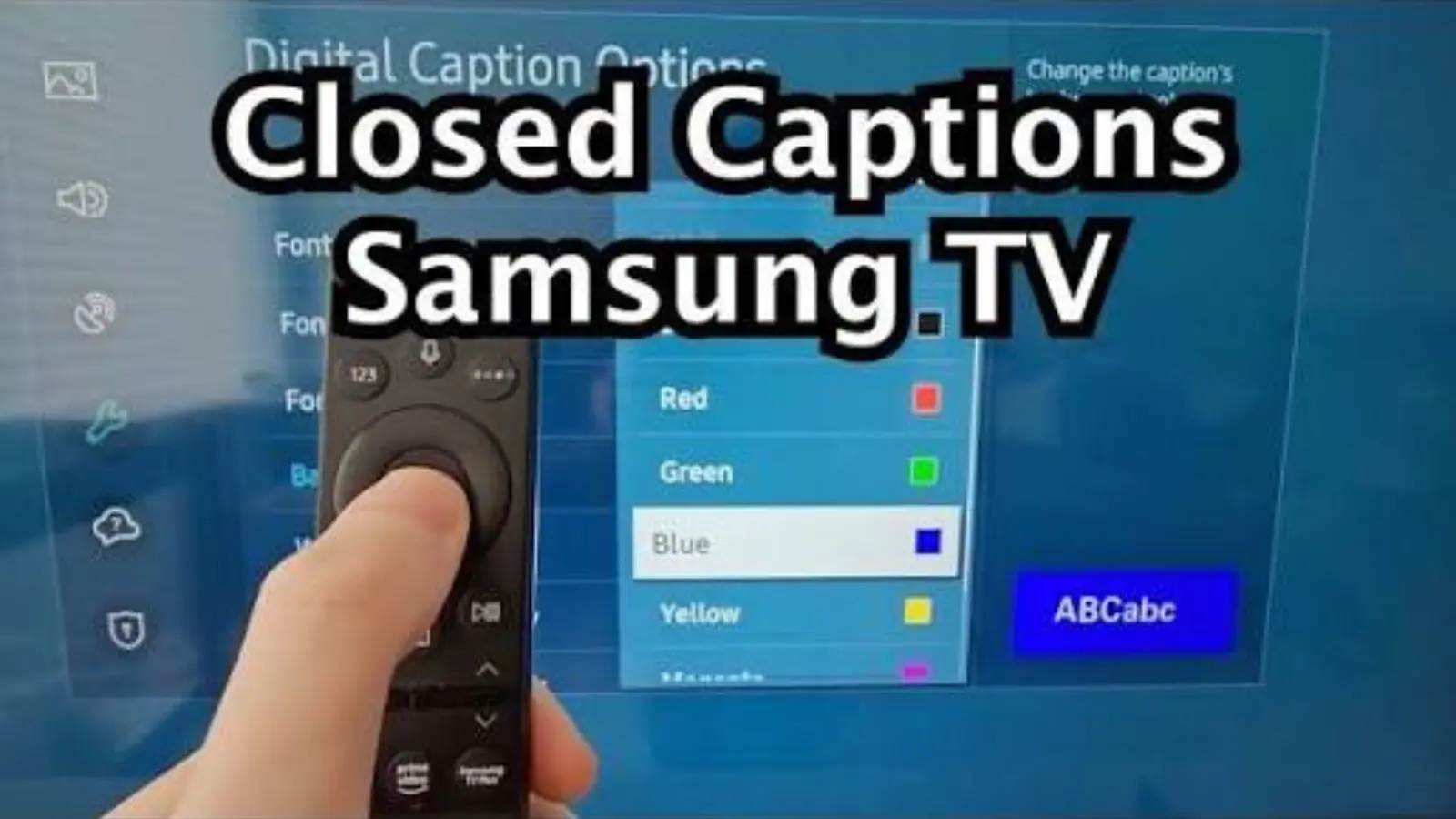
Knowing how to turn off closed caption on Samsung TV makes watching movies, sports, television shows, and streaming content more enjoyable when you prefer listening without on-screen text.
Closed captions display spoken dialogue, sound effects, and other audio information as text on your television screen.
How to turn off closed caption on Samsung TV: Press the Home button on your Samsung remote, open Settings, select General or General and Privacy, choose Accessibility, and open Caption Settings. Switch Caption to Off.
Menu names may differ depending on your Samsung TV model and software version.
Samsung provides several ways to manage subtitles and captions, including accessibility settings, streaming application controls, and external device settings.
Understanding these differences is important because captions can sometimes remain visible even after you disable them in the television’s main menu.
This guide explains how to disable closed captions on different Samsung TV generations, troubleshoot subtitles that refuse to disappear, and customize accessibility preferences. Whether you own a Samsung Smart TV, Crystal UHD, QLED, Neo QLED, or an older model, you will find practical instructions to help you regain control of your viewing experience. 📺
1. Finding the Closed Caption Feature in Samsung TV Settings
The first step is locating the correct caption control. Samsung places closed caption settings inside its Accessibility menu on most Smart TV models.
1. Turn on your Samsung television. Use the television’s physical power button or remote control. Wait until the Home screen or current television program appears.
2. Locate the Home button. On most Samsung Smart Remotes, the Home button is represented by a house-shaped icon. Press it once to open the main navigation screen.
3. Open the Settings menu. Navigate to the Settings icon using the directional buttons. Depending on your television, you may see a separate Settings option or an All Settings option.
4. Find General settings. Select General if your television uses the older menu layout. Some newer Samsung models display General and Privacy instead.
5. Open Accessibility. Scroll through the available General options and select Accessibility. This section contains features designed to make television viewing easier for different users.
6. Select Caption Settings. Look for Caption Settings within the Accessibility menu. This is where Samsung organizes the primary closed caption controls.
7. Locate the Caption switch. The main Caption option determines whether supported broadcast captions are displayed by the television.
8. Change the setting to Off. Select Caption and use the directional pad or confirmation button to disable it.
9. Return to your program. Press Back or Home to leave the settings screen and return to your preferred channel or application.
10. Check the screen carefully. Watch a few seconds of the program to determine whether the captions have disappeared.
11. Test another channel if necessary. If captions remain visible, change channels or open another application. This helps identify whether the television or a particular source controls the subtitles.
12. Remember your menu location. Once you know where Caption Settings is located, you can quickly enable or disable captions whenever your viewing preferences change.
Samsung confirms that the precise availability and wording of accessibility options can vary by television model and software version. Samsung+1
2. Using a Samsung Smart Remote to Disable Captions Quickly
Samsung Smart Remotes offer convenient shortcuts that can reduce the number of steps needed to access accessibility options.
1. Identify your remote model. Modern Samsung Smart Remotes generally have a simplified design with fewer physical buttons than traditional television remotes.
2. Locate the volume control. Find the volume button or rocker on your remote. Depending on the model, it may also function as a selectable control.
3. Press and hold the volume button. On supported Smart Remotes, holding the volume control opens the Accessibility Shortcuts menu.
4. Wait for the accessibility menu. Give the television a moment to display the available accessibility options.
5. Find the caption option. Look for Captions, Closed Captions, or the relevant accessibility setting.
6. Select the caption control. Use the remote’s directional controls or center button to open the option.
7. Switch captions off. If the shortcut menu provides a direct toggle, change the setting to Off.
8. Use the mute shortcut where supported. Some Samsung remote versions use a long press of the Mute button to access accessibility shortcuts instead.
9. Check the menu response. If holding the volume button changes the volume rather than opening accessibility options, your particular remote may not support that shortcut.
10. Use the full settings route if needed. Navigate to Home, Settings, General or General and Privacy, Accessibility, and Caption Settings.
11. Avoid pressing buttons repeatedly. Give the television time to display the shortcut menu before trying another control.
12. Consult your remote’s model information. Samsung has released different remote designs over the years, so shortcut behavior is not identical across every television.
Samsung’s accessibility guidance documents the long-press shortcut and notes that the available functions depend on the remote and television. Samsung UK+1
3. Turning Off Closed Captions on Older Samsung Television Models
Older Samsung televisions may use a different settings structure. If your TV does not have an Accessibility menu, look for a Caption option under Setup, System, or Support.
1. Turn on the older television. Make sure the TV is displaying its normal picture before opening the menu.
2. Press the Menu button. Traditional Samsung remotes often include a dedicated Menu button instead of relying entirely on the Home interface.
3. Open the Setup section. Use the up and down arrow buttons to navigate to Setup, if that category is available.
4. Look for Caption. Select the Caption option in the Setup menu. Some older models place this feature under System or another menu category.
5. Open the Caption submenu. Press Enter or the center selection button to display the available caption choices.
6. Select Off. Use the directional buttons to highlight Off and confirm your selection.
7. Try the Support menu if necessary. Certain older Samsung models organize caption controls under Support rather than Setup.
8. Check the System category. Some television generations use System, followed by Accessibility or Caption.
9. Use the remote’s Exit button. After changing the setting, press Exit to return to your television program.
10. Test a broadcast channel. Older televisions may handle broadcast captions differently from content connected through HDMI.
11. Check the input source. If the Caption option appears unavailable, switch to a supported television broadcast source before changing the setting.
12. Look up the model-specific manual. The complete model number, usually printed on the back of the television or available in its About This TV section, can help identify the correct instructions.
Samsung’s older television documentation describes Caption controls under Setup or Support and explains that some sources do not provide captions directly to the television. Support+2
4. Understanding Why Captions Sometimes Remain on the Screen
One of the most confusing Samsung TV problems occurs when captions remain visible even after the main television caption setting has been disabled.
1. Check streaming applications. Services such as Netflix may offer their own subtitle controls. A caption preference inside an application may be separate from the television’s broadcast setting.
2. Inspect the cable box. If you watch television through a cable receiver, its accessibility settings may control the displayed captions.
3. Check satellite receivers. Satellite television equipment can have an independent closed caption feature that continues displaying text regardless of the Samsung TV setting.
4. Review streaming devices. Devices such as Apple TV, Fire TV, and other streaming players may manage subtitles independently.
5. Inspect gaming consoles. Some consoles provide accessibility and subtitle settings that affect supported games and media applications.
6. Understand open captions. Open captions are permanently embedded in the video itself. They cannot be disabled through the television’s normal closed caption switch.
7. Distinguish subtitles from captions. Subtitles generally display dialogue, while closed captions may also identify music, sound effects, and other audio information.
8. Check individual applications. If text appears only in one streaming service, investigate that service before changing every television setting.
9. Try another video. Play a different movie, show, or television program to determine whether the issue is limited to one piece of content.
10. Inspect the input source. If captions appear through HDMI, the connected device may be responsible for displaying them.
11. Check the broadcast itself. Certain programs contain embedded text or open captions that remain visible regardless of your television’s settings.
12. Identify where the text originates. Determining whether the caption comes from the TV, application, broadcast, or connected equipment is the most important troubleshooting step.
Samsung specifically explains that supported applications, consoles, set-top boxes, and other sources can have separate caption settings. Samsung+1
5. Disabling Subtitles in Netflix and Other Streaming Applications
If closed captions appear only when watching streaming content, the application may be responsible. In that situation, changing Samsung’s main accessibility settings might not solve the problem.
1. Open the streaming application. Launch Netflix, Prime Video, Disney+, or another service where the subtitles appear.
2. Start playing a video. Some applications only display subtitle controls after playback begins.
3. Open playback controls. Press the center or directional button on your Samsung remote to reveal the available playback options.
4. Find the audio and subtitle menu. Look for an icon resembling a speech bubble, dialogue box, or language selector.
5. Open subtitle settings. Select the menu that displays available subtitle languages and accessibility options.
6. Choose Off or None. Select the option that disables subtitles for the current program.
7. Return to playback. Close the menu and check whether the text has disappeared.
8. Check the next episode. Some applications remember subtitle preferences, while others may apply them differently to individual titles.
9. Inspect the application profile. Certain services maintain language or subtitle preferences at the profile level.
10. Repeat the process in other applications. If captions also appear in another streaming service, check its individual playback controls.
11. Update the application if necessary. An outdated application may display settings differently or experience playback-related problems.
12. Contact the streaming service if controls fail. If subtitles remain enabled despite selecting Off, consult that service’s current support instructions.
A useful diagnostic rule is simple: if captions appear in only one application, investigate that application’s settings first. Samsung also documents that supported streaming services can maintain independent caption controls. Samsung+1
6. Removing Closed Captions From HDMI, Cable, and Satellite Devices
When your Samsung TV is connected to an external device, captions may be controlled by that device rather than by the television.
1. Identify the connected device. Determine whether your television receives content from a cable receiver, satellite box, streaming stick, gaming console, or another HDMI device.
2. Select the correct HDMI input. Press Source or Home on your Samsung remote and identify which HDMI connection is currently active.
3. Find the device’s remote control. Use the remote belonging to the cable box or streaming device when changing its accessibility settings.
4. Open the external device settings. Look for Settings, Preferences, Accessibility, or Display options in the connected device’s menu.
5. Find its caption controls. Search for Closed Captions, Subtitles, Captions, or Accessibility depending on the equipment.
6. Select Off. Disable the caption feature and confirm your selection if the device requests confirmation.
7. Check the cable receiver. Cable television receivers sometimes have their own subtitle preferences, independent of the Samsung television.
8. Inspect satellite equipment. Satellite receivers may provide a dedicated accessibility menu or caption shortcut.
9. Review streaming stick settings. Streaming devices can apply subtitle preferences across compatible applications.
10. Restart the connected device. If captions remain after changing the setting, restart the external device and check the content again.
11. Test another HDMI input. If possible, connect another device to determine whether the problem is specific to one source.
12. Use the equipment manufacturer’s instructions. If you cannot find the caption control, consult the manufacturer’s support documentation for the exact device model.
Samsung explains that HDMI, component, and PC sources may require caption adjustments on the connected equipment instead of through the television’s broadcast caption menu. Support+1
7. Understanding Samsung Caption Settings and Their Different Options
Samsung televisions provide several caption-related controls. Understanding what each option does helps prevent accidental changes to unrelated accessibility features.
1. Caption On and Off: This is the main switch that controls whether supported closed captions appear on the screen.
2. Caption Mode: This option selects the available caption language or broadcast caption mode. The choices depend on the television, region, and broadcast signal.
3. Digital Caption Options: This section provides appearance controls for supported digital captions, including text size, font, and colors.
4. Font Style: Some Samsung models allow viewers to select different font styles to improve caption readability.
5. Font Size: You may be able to increase or decrease caption text size according to your viewing preferences.
6. Font Color: Supported televisions can offer different text colors to improve contrast against the background.
7. Background Color: This setting changes the background behind caption text on compatible models.
8. Window Opacity: Certain models provide transparency controls that affect how the caption background appears.
9. Caption Position: Supported televisions may allow viewers to change where captions appear on the screen.
10. Separate Closed Caption: This feature helps separate closed captions from open captions when both are displayed and overlap.
11. Return to Default: Some models provide an option to restore digital caption appearance settings to their original values.
12. Model-Specific Availability: Not every Samsung TV supports every caption customization feature. Menu options depend on the model, region, broadcast, and software version.
Remember that changing font size, color, or position does not necessarily disable captions. If your goal is to remove the text completely, use the main Caption switch and select Off.
Samsung describes these customization options in its official accessibility documentation. Samsung+2
8. Fixing Samsung TV Closed Captions That Will Not Turn Off
If captions continue appearing after you have selected Off, follow a systematic troubleshooting process rather than repeatedly changing random settings.
1. Verify the main caption switch. Return to Accessibility and Caption Settings to confirm that Caption is actually set to Off.
2. Check the active source. Identify whether you are watching a broadcast channel, HDMI device, or streaming application.
3. Change the channel. Try another television channel to determine whether the text is associated with one particular broadcast.
4. Open another application. If the captions disappear in another app, the original streaming service may control them.
5. Restart your television. Turn off the TV, wait briefly, and turn it back on. Check whether the caption setting remains disabled.
6. Power-cycle connected devices. Restart your cable box, streaming stick, or receiver if it is responsible for displaying subtitles.
7. Check for open captions. Text permanently included in a video cannot be removed through Samsung’s closed caption settings.
8. Inspect the HDMI device. Use its own remote control to check whether its accessibility settings are still enabled.
9. Check the remote shortcut. Make sure captions were not accidentally switched back on through an accessibility shortcut.
10. Install available software updates. An update may resolve software-related issues. Open Settings and look under Support or Software Update, depending on your model.
11. Restore caption appearance defaults. If the text looks unusual or caption formatting has become confusing, check whether Digital Caption Options provides Return to Default. This resets appearance options, not necessarily the main Caption switch.
12. Contact Samsung Support if necessary. If captions remain visible across multiple sources despite checking all relevant controls, provide Samsung with your television’s model number and a description of the problem.
Avoid performing a factory reset as your first troubleshooting step. It can remove personalized settings and require you to configure the television again.
9. Turning Off Captions on Samsung QLED, OLED, Crystal UHD, and Neo QLED TVs
Samsung offers several television families, but many modern models use a similar accessibility menu structure.
1. Samsung Crystal UHD TVs: Begin with Home, Settings, General or General and Privacy, Accessibility, and Caption Settings. Select Caption and switch it Off.
2. Samsung QLED TVs: Most supported QLED models provide caption controls through the Accessibility menu. Check the General section if the exact label differs.
3. Samsung Neo QLED TVs: Open All Settings or Settings, locate Accessibility, and look for Caption Settings.
4. Samsung OLED TVs: Check the same general accessibility pathway. The availability of particular caption options depends on the model and region.
5. Older 4K Samsung TVs: Some older models use a simpler menu with General, Accessibility, and Caption controls.
6. Samsung Frame TVs: The Frame series provides accessibility options, although some menu names can differ by model and software version.
7. Samsung Serif TVs: Check the standard accessibility settings first rather than assuming that the television uses a different caption system.
8. Samsung Lifestyle TVs: Models with specialized designs may still use familiar Smart TV navigation for accessibility controls.
9. Older Samsung Smart TVs: Look for Menu, Setup, System, or Support if you cannot locate the newer Accessibility menu.
10. Regional Samsung models: Television software and accessibility options can vary between countries. Your region may have different labels or supported features.
11. Recently updated televisions: Software updates can change menu organization. Follow the labels currently displayed on your television rather than relying exclusively on older screenshots.
12. Check the exact model number: When the standard instructions do not match your television, use the model number to locate the correct Samsung user manual.
The important point is that the television family name does not always determine the exact menu structure. Samsung’s official support information recommends checking model-specific availability and software differences. Samsung+1
10. Managing Caption Preferences for a Better Viewing Experience
Although many people prefer watching television without captions, others occasionally need them. Samsung’s accessibility settings allow compatible models to accommodate different viewing preferences.
1. Choose captions according to your needs. Disable them when you prefer an uninterrupted picture and enable them when dialogue becomes difficult to understand.
2. Use captions in noisy environments. If television audio is difficult to hear because of background noise, captions can help you follow conversations.
3. Customize text size when needed. Larger caption text may be easier to read from a distance.
4. Improve text contrast. Adjust supported font and background colors if captions are difficult to distinguish from the video.
5. Consider the viewing distance. A caption size that works on a television across a small room may not be suitable for a larger living space.
6. Use language settings carefully. Select a supported caption language when watching international broadcasts or multilingual content.
7. Distinguish captions from voice guidance. Voice Guidance reads television menus aloud, while closed captions display text associated with program audio. They are separate accessibility features.
8. Check subtitle preferences on each service. Different streaming applications may remember their own language and subtitle settings.
9. Keep accessibility shortcuts available. If you regularly change caption preferences, learning the remote shortcut can save time.
10. Avoid unnecessary system changes. You generally do not need to change picture, sound, or network settings to turn off closed captions.
11. Preserve useful accessibility settings. If someone else in your household relies on captions, consider discussing shared preferences before disabling them permanently.
12. Review settings whenever you change equipment. A new cable box, streaming device, or television update may introduce different subtitle controls.
The best viewing experience depends on your household’s preferences. You can turn captions off when you do not need them and restore them whenever accessibility or language support becomes useful.
11. Common Questions About Turning Off Closed Captions on Samsung TV
Here are answers to frequently asked questions from Samsung television owners who want to remove subtitles or understand why they keep appearing.
1. How do I turn off closed caption on Samsung TV?
Press Home, open Settings, select General or General and Privacy, choose Accessibility, open Caption Settings, and set Caption to Off.
2. Why are captions still showing after I turn them off?
They may be controlled by a streaming application, cable receiver, satellite box, or connected HDMI device. They may also be permanently embedded in the video.
3. Can I turn off captions using my Samsung remote?
On supported Smart Remotes, press and hold the volume button or, on certain models, the Mute button to open Accessibility Shortcuts.
4. Where are closed caption settings on Samsung Smart TV?
They are generally located under Settings, General or General and Privacy, Accessibility, and Caption Settings.
5. Why is Caption Settings greyed out?
The current source may not support television-controlled broadcast captions. Older Samsung models may disable the option when using HDMI, component, or PC sources.
6. How do I turn off subtitles on Netflix using Samsung TV?
Start playing a title, open the audio and subtitles menu, and select Off or None if available.
7. Can I remove subtitles from every video?
You can disable supported closed captions, but you cannot remove text permanently embedded in the video itself.
8. Do Samsung QLED and Crystal UHD TVs have the same caption settings?
Many models use similar Accessibility menus, but the exact options and labels can vary.
9. How do I make Samsung TV captions smaller?
Open Caption Settings, select Digital Caption Options, and adjust Font Size if your television supports that feature.
10. Will turning off closed captions affect the sound?
No. Disabling captions changes the displayed text, not the television’s audio output.
11. Do I need to reset my Samsung TV to remove captions?
Usually not. Checking the television, streaming application, and connected devices should be sufficient.
12. Can captions turn themselves back on?
They may appear again if an application, connected device, broadcast setting, or another household member changes the caption preference.
For additional model-specific guidance, visit Samsung’s official Accessibility Settings guide.
12. Preventing Closed Caption Problems and Keeping Samsung TV Settings Under Control
Once you have successfully disabled captions, a few simple habits can help prevent the same issue from happening again.
1. Remember the Accessibility menu location. Keep the path to Caption Settings in mind so you can quickly check the main switch when captions unexpectedly appear.
2. Learn your remote’s shortcuts. Understanding the accessibility shortcut can save time when adjusting captions.
3. Check new streaming applications. Newly installed applications may have separate subtitle preferences that do not follow your existing television settings.
4. Review connected device settings. If you replace a cable receiver or streaming stick, check its accessibility menu before assuming the television is responsible.
5. Keep television software updated. Check for available Samsung software updates when you experience unusual menu behavior or accessibility problems.
6. Use the correct device remote. Your Samsung remote may control television settings, but the connected device’s remote may be required for its independent subtitle controls.
7. Avoid unnecessary factory resets. A factory reset is a major troubleshooting step and should not be necessary for an ordinary caption adjustment.
8. Check captions after changing inputs. Switching from a television broadcast to an HDMI device may change which equipment controls the text.
9. Keep model information accessible. Knowing your television’s model number makes it easier to find accurate instructions.
10. Explain settings to household members. If multiple people use the same television, make sure everyone understands how to switch captions on and off.
11. Distinguish genuine captions from video text. Before changing additional settings, establish whether the words are generated by the TV or permanently included in the video.
12. Use Samsung’s support resources. When your menu differs from the instructions, consult the official documentation for your exact television model rather than changing unrelated settings.
These habits make it easier to manage your television’s accessibility features without repeatedly troubleshooting the same problem.
Conclusion: Enjoy Samsung TV Without Unwanted Closed Captions
Learning how to turn off closed caption on Samsung TV is straightforward once you understand where Samsung places its accessibility settings.
For most modern Smart TVs, the quickest method is to open Home, navigate to Settings, select General or General and Privacy, choose Accessibility, open Caption Settings, and switch Caption to Off.
If captions continue appearing, remember that your streaming applications, cable receivers, satellite boxes, and HDMI-connected devices may have independent subtitle controls.
Also, text permanently embedded in a video cannot be removed through the television’s closed caption settings.
Here are the most important things to remember:
- Use the Accessibility menu to disable television-controlled closed captions.
- Try the Smart Remote accessibility shortcut for quicker access.
- Check individual streaming applications when subtitles appear only in one service.
- Disable captions separately on external devices when necessary.
- Consult your model-specific Samsung manual if menu options differ.
Take action today: Follow the steps in this guide, check your current input source, and enjoy watching your favorite movies, shows, and sports without unwanted text on the screen.
If the issue continues, identify your Samsung TV model and the source displaying the captions before troubleshooting further.

Emma Collins writes creative pick up lines for readers looking to add humor and confidence to their chats. Her content focuses on clever openers and fun conversation ideas.