
If you’re wondering, how do I turn off closed captioning, the answer depends on the device or streaming service you’re using.
Generally, open your device’s Settings or Accessibility menu, find Captions, Subtitles, or Closed Captions, and switch the feature off.
Closed captioning displays spoken dialogue, sound effects, and other audio information as text on a screen.
Although captions are helpful for accessibility, they can sometimes appear unexpectedly when watching movies, television programs, or online videos.
You might see subtitles on your Samsung TV, Roku, Apple TV, Amazon Fire TV, Netflix, YouTube, or smartphone even when you don’t want them.
In some cases, captions are controlled by the television; in others, the streaming application or individual video controls them.
This comprehensive guide explains how to disable closed captions across popular devices, streaming platforms, and operating systems.
You’ll also learn why captions sometimes turn back on, how to troubleshoot persistent subtitles, and how to adjust caption preferences.
1. Understanding Why Closed Captions Sometimes Appear Without Warning
Before changing settings, it helps to understand where captions originate. A television, streaming application, cable receiver, or video file may control its own caption settings.
1. Accessibility settings may be enabled. Many televisions and streaming devices include accessibility features that automatically display captions. Someone may have enabled them accidentally while exploring the settings menu.
2. Streaming applications remember preferences. Services such as Netflix and other streaming platforms may remember your previous subtitle selection. If captions were enabled during an earlier viewing session, they may appear again.
3. Remote control shortcuts can activate captions. Some remotes include dedicated subtitle or accessibility buttons. Pressing one accidentally can change caption preferences.
4. Different devices have separate settings. Turning captions off on your television does not necessarily disable captions inside a connected streaming device or application.
5. Cable and satellite receivers have independent controls. A television may display captions supplied by a cable box rather than generating them itself. This means you may need to change the receiver’s settings.
6. Individual programs may have different caption options. Some videos provide multiple subtitle tracks, including translated subtitles and closed captions. Your selected option may vary from one program to another.
7. Live television can use broadcast captions. Broadcast programs may include caption information that is controlled through your television or receiving equipment.
8. Automatic accessibility preferences may be synchronized. Some applications and devices remember settings across accounts or connected devices, causing captions to appear on more than one screen.
9. Software updates can change menu layouts. An operating system update may reorganize accessibility settings or restore certain preferences.
10. External devices can override expectations. A connected game console, media player, or set-top box may provide its own caption controls.
11. Captions and subtitles are not always identical. Subtitles generally display spoken dialogue, while closed captions can also describe sound effects, music, and speaker identification.
12. Multiple caption sources can overlap. If both a television and an application display captions, you may see duplicate text. Identifying the source is important before troubleshooting.
Understanding these differences makes it easier to find the correct setting rather than changing unrelated options.
2. Turning Off Closed Captioning Directly Through Your Television Settings
If captions appear while watching regular television or using several connected devices, start by checking your TV’s accessibility settings.
1. Open your television’s settings. Press the Settings, Menu, or Home button on your remote. Look for a section called Settings, General, Accessibility, or System.
2. Find the captioning menu. Depending on the manufacturer, the option may be called Closed Captions, Caption Settings, Subtitles, or Accessibility.
3. Select the off option. Open the captioning menu and choose Off or Disabled. Some televisions use an On/Off toggle instead of a list.
4. Check the current input. If you watch television through HDMI, confirm whether the captions originate from the television or the connected device.
5. Look for separate digital and analog settings. Older televisions may provide different controls for analog and digital captions. Disable the relevant option if both are enabled.
6. Check the default caption preference. Some televisions have a default setting that automatically displays available captions. Change it to Off if you do not want captions enabled automatically.
7. Exit the menu properly. Return to your program and allow the television a few seconds to apply the change.
8. Test another channel. If captions disappear on one channel but remain on another, the broadcast or source device may be controlling them.
9. Inspect accessibility shortcuts. Some televisions let users assign a remote button to accessibility functions. Check whether a shortcut is repeatedly activating captions.
10. Restart the television if necessary. If the setting appears disabled but captions remain visible, turn the television off, disconnect power briefly if appropriate, and restart it.
11. Review connected-device settings. If captions only appear when using a streaming stick or cable receiver, inspect that device’s accessibility menu.
12. Consult the manufacturer’s instructions. TV menu names vary by model and software version. The manufacturer’s support documentation can help identify the exact option.
Tip: If captions remain after disabling them on your TV, check the device or application providing the video.
3. Removing Closed Captions From Samsung Smart TVs
Samsung televisions include accessibility controls that allow viewers to manage captions and other display preferences. Menu layouts differ depending on the model and year.
1. Press the Home button. Use your Samsung remote to open the Smart Hub or Home screen.
2. Open Settings. Navigate to Settings, usually represented by a gear icon.
3. Locate General or All Settings. Depending on your model, accessibility options may appear under General, General and Privacy, or a similarly named section.
4. Open Accessibility. Select the accessibility menu to view available caption and display features.
5. Find Caption Settings. Look for a menu labeled Caption Settings or a similar option.
6. Switch captions off. Select Caption and change the setting to Off when that option is available.
7. Check caption mode. Some models provide additional settings for digital captions, including caption modes and display preferences.
8. Review streaming applications. If Netflix or another application continues displaying subtitles, open its playback controls and disable subtitles there as well.
9. Check the connected source. When watching through a cable box or external streaming player, the captions may originate from that equipment.
10. Restart the application. Close and reopen the streaming service to confirm that the new preference has taken effect.
11. Update the television software. If menus behave unexpectedly, check for an available software update through the television’s support or software-update section.
12. Use the Samsung support guide. If your model uses a different menu structure, consult Samsung’s official documentation for model-specific instructions.
Samsung menus vary, so do not worry if the exact wording differs from these examples. The important destination is the television’s accessibility or caption settings.
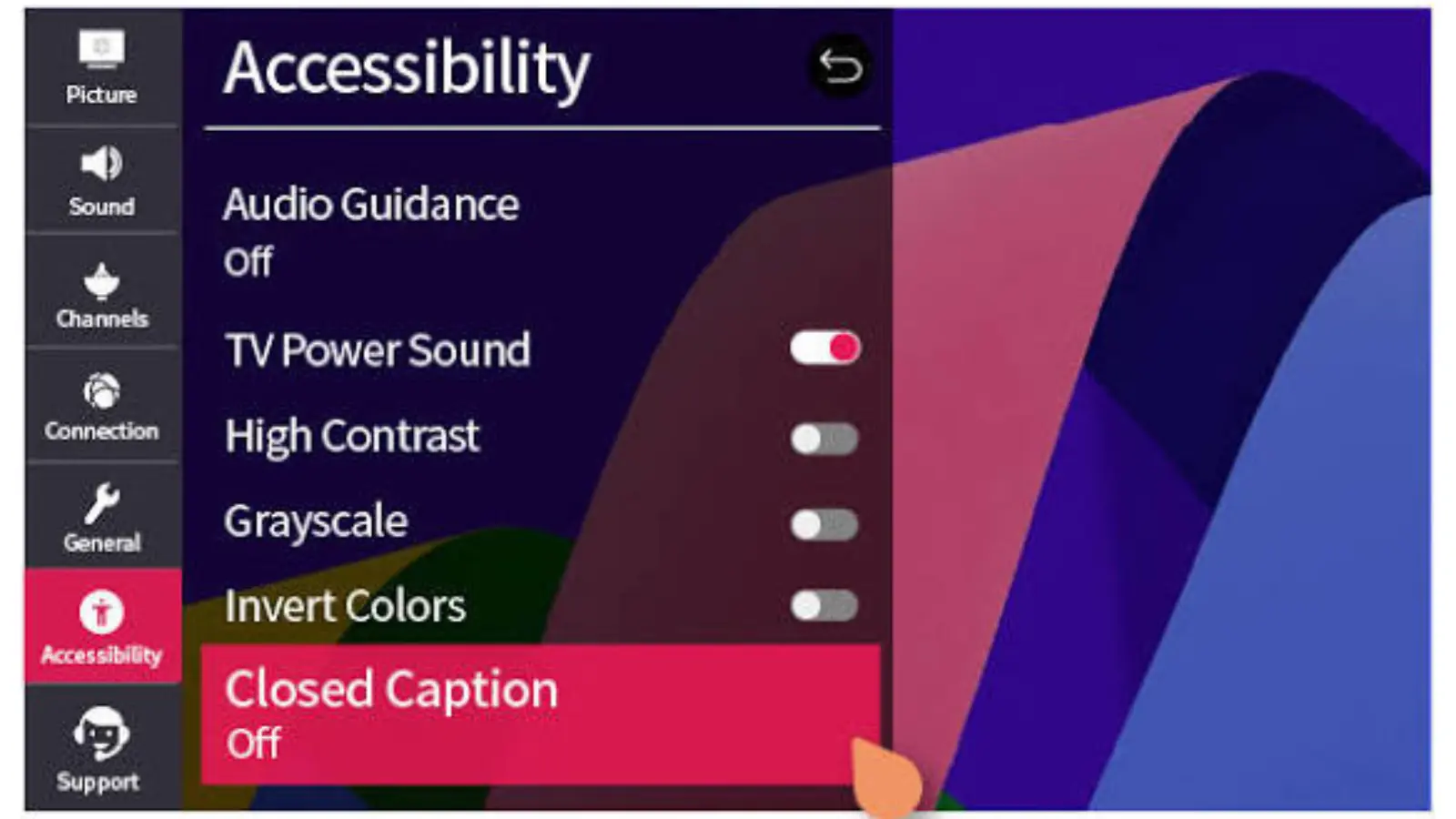
4. Disabling Closed Captioning on LG Smart TVs
LG Smart TVs provide caption controls through their accessibility and general settings. The exact location depends on whether your television uses webOS or an older operating system.
1. Open the LG Home screen. Press the Home button on your remote to access the main television interface.
2. Enter the Settings menu. Select the gear icon and open All Settings if your television displays a quick-settings panel.
3. Navigate to Accessibility. Look for Accessibility under General or a similarly named settings category.
4. Locate Closed Captions. Some LG models label this option simply as Captions or Closed Caption.
5. Choose Off. Select the disabled option to stop displaying television-generated captions.
6. Check broadcast settings. If you watch antenna or cable television, verify that the caption setting for broadcast programming is disabled.
7. Inspect external devices. Captions from a Roku, Fire TV, cable receiver, or gaming console may require separate changes.
8. Check your streaming application. Open the video playback menu and look for Subtitles or Audio and Subtitles.
9. Review language preferences. Make sure the application is not automatically selecting a subtitle language.
10. Restart the television. Restarting can help resolve situations where the display continues showing captions after changing settings.
11. Check software updates. Updated software may resolve menu problems or unusual accessibility behavior.
12. Consult LG model-specific instructions. If your television uses a different webOS version, check the LG support website for the correct menu path.
LG C3 OLED Calibration Settings – RTINGS.com
5. Switching Off Captions on Roku Streaming Devices and TVs
Roku offers several ways to manage subtitles and closed captions. You can generally change the settings through its accessibility menu or directly during video playback.
1. Open the Roku Home screen. Press the Home button on your Roku remote.
2. Navigate to Settings. Scroll through the main menu and select Settings.
3. Find Accessibility. Open the Accessibility section if it appears in your Roku software version.
4. Open Captions Mode. Select Captions Mode to see the available options.
5. Choose Off. Select Off to disable captions wherever Roku’s system-level caption preference applies.
6. Understand the Always On option. If Captions Mode is set to Always On, Roku may display available captions whenever supported.
7. Avoid On Replay if unnecessary. This setting displays captions when you use the replay feature, rather than continuously.
8. Check individual applications. Some streaming channels have their own subtitle controls that may override or supplement the device preference.
9. Disable captions during playback. Press the appropriate playback or options button and inspect the audio and subtitle settings if the application provides them.
10. Restart your Roku. If captions remain visible, restart the device through its system settings.
11. Check for software updates. An update can resolve bugs affecting accessibility preferences and playback behavior.
12. Test different channels. Try another application or television channel to determine whether the problem is device-wide or limited to one service.
How To Turn Off Closed Captions On Roku
6. Turning Off Closed Captions on Amazon Fire TV and Fire Stick
Amazon Fire TV devices include accessibility options for managing subtitles and other viewing features. You can also change subtitle settings inside supported streaming applications.
1. Press Home on your Fire TV remote. This takes you to the main Fire TV interface.
2. Open Settings. Select the gear icon or settings option.
3. Find Accessibility. Navigate to the Accessibility menu to view available display and audio assistance options.
4. Locate Closed Captions. Depending on your Fire TV version, the option may be listed under accessibility settings.
5. Switch the feature off. If a Closed Captions toggle is available, disable it.
6. Check the playback screen. Start a video and open its playback controls to find the subtitle menu.
7. Select None or Off. If the application offers subtitle choices, select the option that disables subtitles.
8. Review application preferences. Netflix, Prime Video, and other services can maintain separate subtitle preferences.
9. Check audio and subtitle tracks. Make sure you are not selecting an alternate language track that includes captions.
10. Restart Fire TV. A restart can refresh the operating system and resolve temporary display problems.
11. Update your device. Look for software updates in the My Fire TV or About section, depending on the model.
12. Verify the result across applications. Open a different streaming service to determine whether the captions are being generated by Fire TV or one specific app.
How to Turn off Subtitles on Prime Video on Any Device – Guiding Tech
7. Removing Subtitles While Watching Netflix, YouTube, and Other Streaming Services
Sometimes your television settings are already correct, but subtitles remain visible because the streaming service controls them separately.
1. Open the video playback menu. Start playing your selected movie or episode and move the remote or cursor to reveal the playback controls.
2. Find Audio and Subtitles. Look for a speech-bubble icon, Subtitles, CC, or Audio and Subtitles option.
3. Select Off. Choose Off or None from the available subtitle options.
4. Check the selected language. If several subtitle languages appear, make sure you have not selected English CC or another caption track.
5. Understand closed captions versus subtitles. A subtitle track may display dialogue only, while a closed-caption track can include sound descriptions and speaker information.
6. Review profile preferences. Some streaming platforms associate language or subtitle preferences with individual profiles.
7. Test another episode. If the next episode displays captions again, check whether the service saves your selection between episodes.
8. Close and reopen the application. Restarting the app can help it recognize updated playback preferences.
9. Check downloaded videos. Offline downloads may retain subtitle selections or embedded text from the original video file.
10. Inspect accessibility preferences. Some services have additional caption preferences outside the playback menu.
11. Update the streaming application. An outdated app can sometimes behave unexpectedly when changing subtitle options.
12. Contact the service if necessary. If subtitles cannot be disabled on multiple titles, consult the streaming provider’s troubleshooting instructions.
The important distinction is that streaming applications often manage subtitles independently of your television. Disabling captions in one application does not automatically disable them everywhere.
8. Disabling Closed Captioning on iPhones, iPads, and Android Phones
Mobile devices have accessibility controls that allow users to manage captions across supported applications. The available options depend on the operating system and application.
1. Open your device settings. On an iPhone or iPad, open Settings. On Android, open Settings from your application menu or notification panel.
2. Find Accessibility. Look for the Accessibility section, which contains hearing-related features.
3. Check caption preferences. On Apple devices, look for Subtitles and Captioning under the hearing-related accessibility settings.
4. Disable closed captions when appropriate. Turn off the relevant caption display option if you do not want supported media applications to show captions automatically.
5. Inspect Android caption controls. Many Android devices provide a Live Caption feature through Accessibility or volume controls.
6. Turn off Live Caption. If your Android phone is automatically generating captions for spoken audio, disable Live Caption rather than changing an unrelated subtitle setting.
7. Check individual video applications. YouTube and other streaming services may have their own caption buttons within the playback screen.
8. Review browser playback. If you watch videos through Safari, Chrome, or another browser, inspect the video player’s subtitle controls.
9. Check Bluetooth devices. Wireless headphones do not usually control captions, but the application or phone may retain an earlier accessibility preference.
10. Restart the application. Close and reopen the video service to refresh its playback settings.
11. Update your operating system. Updates can change the location of accessibility options and fix software problems.
12. Test more than one video. If captions disappear in one app but not another, the remaining issue is likely related to that application’s settings.
Subtitles, Captions, WebVTT, HLS, and those magic flags | Mux
9. Removing Closed Captions From Windows and Mac Computers
Computer users may encounter captions through browsers, media players, conferencing applications, or operating-system accessibility features.
1. Identify the caption source. Determine whether the text appears in a browser video, downloaded movie, video meeting, or operating-system feature.
2. Check Windows accessibility. Open Windows Settings and navigate to Accessibility, then inspect the Captions section.
3. Review Windows Live Captions. If Windows is generating captions for system audio, turn off Live Captions using its accessibility controls or supported keyboard shortcut.
4. Check browser video controls. Open the video player’s subtitle or CC menu and choose Off if available.
5. Inspect Chrome settings. If captions appear through a browser feature, review Chrome’s accessibility and live caption settings.
6. Check Mac accessibility. On macOS, open System Settings and inspect Accessibility, particularly the Captions options.
7. Review the media player. Applications such as VLC may use separate subtitle menus. Check the Subtitle menu and disable the active subtitle track.
8. Inspect conferencing applications. Zoom, Microsoft Teams, and similar services may provide live transcription or captions independently of the operating system.
9. Check external monitors. If the video comes from an external streaming device connected to a monitor, inspect the device that generates the video.
10. Restart your browser. Close the tab or browser and reopen the video after changing the settings.
11. Update the software. Make sure your operating system, browser, and video application are using supported versions.
12. Test a different media source. Play another video to determine whether captions originate from the operating system, application, or original media file.
11 Windows 11 (22H2) Tips You Should Know – Hongkiat
10. Understanding Why Closed Captions Will Not Turn Off
It can be frustrating when captions remain visible even after you disable them. Fortunately, most persistent caption problems have identifiable causes.
1. The wrong setting was changed. You may have disabled captions on your television while the streaming application continues displaying its own subtitle track. Check both locations.
2. The caption source is external. A cable box, streaming stick, gaming console, or media receiver may be generating the captions independently.
3. The application remembers your selection. Some services restore previous subtitle preferences when you start another video or episode.
4. The video contains permanent subtitles. Some videos have subtitles embedded directly into the picture. These cannot be removed through ordinary caption settings.
5. Live Caption is enabled. Your phone or computer may be automatically converting speech into text. This feature is different from traditional closed captioning.
6. Accessibility preferences are synchronized. A connected account or device may restore previously selected accessibility settings.
7. The application has a temporary software issue. Closing and reopening the application may refresh its settings and resolve the problem.
8. The device needs a restart. Restarting your television, streaming player, or phone can resolve temporary software glitches.
9. An outdated application is causing problems. Check whether an update is available for the affected streaming service.
10. The video has limited subtitle controls. Certain media files or broadcasts may not allow viewers to remove all displayed text.
11. The remote control activates captions accidentally. Inspect accessibility shortcuts and dedicated CC buttons to prevent accidental activation.
12. The television needs additional troubleshooting. If captions appear across every input and application, consult the manufacturer’s support instructions or contact customer service.
The easiest troubleshooting approach is to identify whether captions appear everywhere or only within one particular application. This simple test can save considerable time.
11. Managing Caption Preferences, Accessibility Features, and Viewing Experience
Turning off captions is not the only way to customize your viewing experience. You can also adjust caption appearance, language preferences, and accessibility options.
1. Choose your preferred language. If you occasionally use subtitles, select the language you understand best instead of relying on automatic language selection.
2. Adjust caption size. Some televisions, computers, and applications let you increase or decrease caption text size.
3. Change text color. Supported devices may allow you to customize the text color for improved readability.
4. Adjust the background. A solid or semi-transparent background can make captions easier to read against bright scenes.
5. Modify caption placement. Certain platforms allow viewers to change where captions appear on the screen.
6. Understand accessibility benefits. Closed captions help people who are deaf or hard of hearing follow dialogue, music, and relevant sound effects.
7. Use captions when watching unfamiliar accents. Even viewers without hearing difficulties may find captions useful when dialogue is difficult to understand.
8. Separate Live Caption from video subtitles. Live Caption generates text from audio, while traditional subtitles are generally supplied with the video or broadcast.
9. Keep accessibility shortcuts organized. If you frequently switch between caption settings, learn which remote or keyboard shortcuts activate them.
10. Avoid disabling unrelated features. Turning off audio descriptions or other accessibility options is unnecessary when your only goal is to remove captions.
11. Consider other household members. If multiple people share a television, communicate before changing accessibility settings that someone else may depend on.
12. Restore captions whenever needed. You can usually return to the same accessibility menu and enable them again without changing other television preferences.
Personalized settings make entertainment more comfortable. The best arrangement is one that supports the viewing preferences of everyone using the device.
12. Using Simple Troubleshooting Habits to Keep Your Screen Caption-Free
Once captions are disabled, a few practical habits can help prevent them from appearing unexpectedly. These steps are especially useful for households using several streaming services and connected devices.
1. Identify your main viewing device. Write down whether you normally watch content through a smart television, streaming stick, cable receiver, computer, or smartphone.
2. Check the main accessibility menu. Make sure the device-level caption preference is set correctly before changing individual applications.
3. Review streaming profiles. If other household members use the same account, check whether they have different subtitle preferences.
4. Learn the remote shortcuts. Familiarize yourself with any CC, subtitle, or accessibility buttons so you can avoid accidentally activating them.
5. Check new applications individually. When installing a streaming service, review its playback and subtitle preferences before watching.
6. Keep software updated. Regular updates help maintain compatibility and can fix problems involving playback and accessibility settings.
7. Test different content sources. Watch a broadcast channel, a streaming video, and a downloaded file to identify where unwanted text originates.
8. Avoid unnecessary factory resets. A factory reset should generally be a last resort because it can erase saved preferences and require you to configure the device again.
9. Keep a record of useful menu paths. Note where the caption settings are located on your television and streaming devices for faster adjustments later.
10. Check settings after major updates. If captions suddenly return following an operating-system update, revisit the accessibility menu.
11. Use official support resources. Manufacturer and streaming-service help centers provide model-specific instructions when menu names or layouts change.
12. Know when to request assistance. If captions remain visible despite correct settings, contact the device manufacturer or streaming provider and explain which applications and inputs are affected.
These habits help you maintain control over your viewing experience without repeatedly searching through complicated menus.
Conclusion: Turn Off Closed Captioning and Enjoy Your Favorite Content
If you’ve been asking, how do I turn off closed captioning, the solution is usually straightforward: open your device’s accessibility, caption, or subtitle settings and select Off.
However, the exact steps depend on where the captions originate.
Samsung and LG televisions have their own accessibility menus, while Roku and Amazon Fire TV provide separate caption controls.
Netflix, YouTube, and other streaming applications may also manage subtitles independently.
Remember these essential troubleshooting tips:
- Check your television’s closed caption settings first.
- Inspect streaming applications individually.
- Look for Live Caption on smartphones and computers.
- Check cable boxes and external streaming devices.
- Restart applications when settings do not take effect.
- Remember that permanently embedded subtitles cannot usually be disabled.
- Consult official manufacturer instructions when menu layouts differ.
You do not have to struggle with unwanted text covering your favorite movies, television shows, or online videos.
Once you identify the source of the captions, you can usually disable them in just a few steps.
Have a captioning problem on a particular device? Share the television brand, streaming device, or application you’re using.
The more specific the device information, the easier it is to identify the correct settings and enjoy a cleaner viewing experience.

Noah Parker enjoys creating original pick up lines that are funny, smooth, and easy to use. He writes playful content inspired by online trends, dating culture, and everyday conversations.