
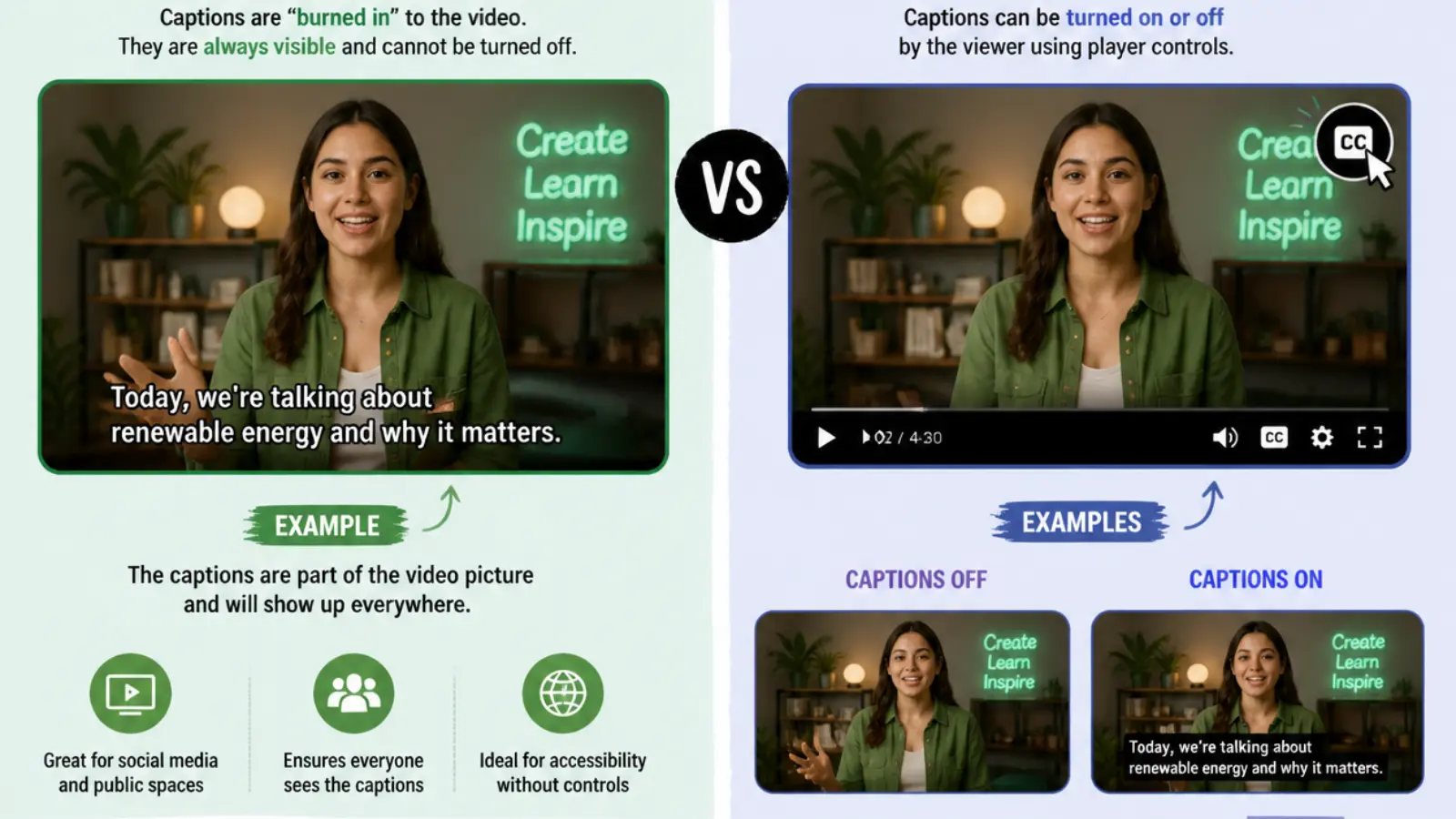
Open caption vs closed caption refers to two different ways of displaying spoken dialogue and important audio information in videos.
Open captions are permanently embedded in the video, while closed captions can be switched on or off by viewers using a supported player or device.
Understanding the difference helps content creators, educators, businesses, and social media marketers make videos more accessible.
Both formats help viewers follow conversations, but they differ in flexibility, appearance, editing, and compatibility.
Today, captions are important across YouTube videos, Instagram Reels, online courses, streaming platforms, presentations, and professional video production.
They also help people watching without sound, viewers with hearing loss, and audiences who prefer reading along.
Choosing the right caption format is not simply a design decision. It affects accessibility, user experience, content distribution, and the way people interact with your videos.
This guide explains how open and closed captions work, compares their advantages and limitations, provides practical examples, and explores how to use captions effectively across modern digital platforms.
1. Understanding the Technical Foundation of Open and Closed Captions
Before comparing the two formats, it is useful to understand how captions are created, stored, and displayed.
1. Open captions are permanently visible. Open captions, sometimes called burned-in captions or hardcoded captions, become part of the video image during editing and exporting. Viewers cannot turn them off using ordinary playback controls.
2. Closed captions operate separately from the video image. Closed captions are supplied as a separate caption track or supported data stream. A compatible player displays them when the viewer enables the caption option.
3. Both formats communicate spoken dialogue. Their main purpose is to make spoken information accessible through text. They can also include relevant sound descriptions, speaker identification, and other meaningful audio information.
4. Open captions are part of the visual design. Because they are embedded in the picture, editors can control their font, size, color, position, background, and animation.
5. Closed captions offer viewer control. Supported platforms allow viewers to switch captions on or off. Some players also provide customization options for text appearance.
6. Caption files use structured timing information. Common formats include SRT, WebVTT, and other platform-supported caption formats. These files organize text into timed segments.
7. Synchronization matters in both formats. Text should appear when the corresponding dialogue or sound occurs. Poor timing can make even accurate captions difficult to follow.
8. Captions differ from ordinary subtitles. Captions generally aim to represent relevant audio information, including meaningful sound effects, while subtitles traditionally focus primarily on spoken dialogue and translation.
9. Playback compatibility affects closed captions. A separate caption track requires a player or platform that supports the relevant format and displays it correctly.
10. Export settings determine open caption appearance. Once captions are burned into a video, their visual appearance is preserved in the exported file unless the video is edited again.
11. Accessibility is the central objective. Neither format is automatically accessible simply because text appears on the screen. Accuracy, readability, timing, and meaningful sound descriptions all matter.
12. The formats can serve different distribution needs. A creator might use embedded captions for a social media video and a separate caption track for a longer educational or streaming production.
The fundamental difference is straightforward: open captions are permanently visible within the video, while closed captions are independently displayed through a compatible playback system.
2. Exploring How Open Captions Change the Video-Watching Experience
Open captions give creators complete control over how text appears on the screen. This makes them particularly useful for visual-first content and situations where playback controls are limited.
1. Consistent visibility: Every viewer sees the same caption text because it is embedded in the video. There is no need to locate or activate a separate caption setting.
2. Creative typography: Editors can select fonts and styles that complement the video’s identity. This is useful for branded content, tutorials, and short-form entertainment.
3. Immediate readability: Viewers can understand the message without searching for a caption button or changing playback settings.
4. Social media compatibility: Open captions are useful for videos distributed across platforms where viewers frequently watch content with the sound muted.
5. Predictable presentation: Because the captions are part of the video, their appearance remains consistent across compatible devices, assuming the video itself is displayed correctly.
6. Animated text effects: Creators can introduce captions word by word, highlight important phrases, or synchronize text with a speaker’s delivery.
7. Simplified sharing: When the video is downloaded or shared as a standard video file, its embedded captions remain visible.
8. No separate caption selection: Viewers do not have to select a language track for the embedded text to appear.
9. Design consistency: Businesses can use the same caption style across advertisements, product demonstrations, and branded social media posts.
10. Limited viewer customization: Viewers generally cannot change the font, size, or position of burned-in text independently of the video.
11. Editing limitations: Correcting an error may require returning to the original project, adjusting the captions, and exporting the video again.
12. Screen-space considerations: Open captions occupy part of the image. Poor placement can cover faces, important demonstrations, graphics, or other essential visual information.
Open captions are especially valuable when creators want a consistent viewing experience and complete control over caption presentation.
3. Discovering the Flexibility of Closed Captions Across Devices
Closed captions provide a different experience because they remain separate from the underlying video image.
1. Viewer-controlled activation: People can turn captions on when needed and switch them off when they prefer watching without text.
2. Flexible display settings: Depending on the player, viewers may change font size, color, background, and other appearance settings.
3. Multiple language tracks: A video can provide separate caption tracks for different languages, allowing viewers to choose an appropriate option.
4. Support for longer videos: Closed captions are commonly used in educational courses, films, television programs, webinars, and streaming content.
5. Separate text management: Caption files can be edited independently of the video, making corrections and updates easier when the original production workflow supports them.
6. Improved accessibility options: A properly prepared closed-caption track can provide dialogue, speaker identification, and relevant sound descriptions.
7. Flexible distribution: Platforms and video players may support caption files alongside the original video, avoiding the need to create a separate burned-in version for every language.
8. Searchable transcripts: Some video platforms use caption text to support transcript viewing or other discovery features. The exact functionality depends on the platform.
9. Device compatibility: Closed captions can work across televisions, computers, tablets, and smartphones when the player supports the caption format.
10. Dependence on correct files: If the caption file is missing, incorrectly formatted, or unsupported, viewers may not see the intended text.
11. Timing and synchronization requirements: Separate caption tracks must match the video timeline. Even accurate dialogue can become confusing when the timing is wrong.
12. Additional quality checks: Creators should test caption activation, language selection, formatting, and synchronization before publishing.
Closed captions provide flexibility and viewer control, making them a practical choice for content that needs multiple language options or adaptable accessibility settings.
4. Comparing Open Caption vs Closed Caption Through Real-World Differences
Although both formats communicate audio information, their practical differences become clearer when viewed side by side.
| Feature | Open captions | Closed captions |
|---|---|---|
| Display | Permanently visible | Can be switched on or off |
| Storage | Embedded in video image | Separate track or data |
| Viewer control | Limited | Greater control |
| Styling | Controlled by creator | Often customizable |
| Editing | Usually requires video re-export | Caption track can be edited separately |
| Multiple languages | Usually requires separate video versions | Multiple tracks may be supported |
| Social media | Useful for silent viewing | Depends on platform support |
| Accessibility | Depends on caption quality | Depends on caption quality |
| Compatibility | Visible wherever the video displays | Requires compatible playback |
| File management | Included in video export | Separate track management may be needed |
| Design consistency | High | Depends on player settings |
| Best use | Designed visual presentation | Flexible playback experience |
1. Visibility is the biggest distinction. Open captions always appear in the image, whereas closed captions depend on the viewer’s settings.
2. Customization works differently. Open captions give creators control over the visual design, while closed captions often give viewers more control over appearance.
3. Distribution requirements vary. Embedded captions travel with the video, while closed captions may require additional files or platform-specific tracks.
4. Language management differs. Multiple languages generally require separate open-caption exports, while closed-caption systems may support multiple selectable tracks.
5. Editing workflows are not identical. Updating a separate caption file can be simpler than re-exporting an entire video with embedded text.
6. Viewing preferences matter. Some people prefer captions to remain visible, while others want the ability to activate them only when necessary.
7. Visual composition is important. Open captions need careful placement to avoid hiding important content.
8. Player functionality influences results. Closed captions depend on the features provided by the device, website, application, or video player.
9. Accessibility cannot be assumed. Both formats require accurate wording and useful descriptions of meaningful audio.
10. The audience determines suitability. Social media viewers may benefit from permanently visible captions, while online learners may appreciate selectable caption tracks.
11. Production budgets can influence the decision. Creating several burned-in language versions may require more editing and export time than maintaining multiple caption files.
12. A combined strategy can be effective. Some video workflows provide both embedded captions and separate caption tracks, giving creators and viewers additional flexibility.
5. Identifying Which Caption Format Works Best for Different Audiences
The right caption format depends on who watches the video, where they watch it, and what they need from the viewing experience.
1. People who are deaf or hard of hearing: Both formats can improve access to spoken information. The best choice depends on the viewing environment and whether the viewer benefits from adjustable caption settings.
2. Social media audiences: Open captions are often practical for Instagram Reels, Facebook videos, and short promotional clips because viewers can immediately read the message.
3. Online students: Closed captions are useful for educational platforms that offer language choices, transcripts, and customizable playback features.
4. International audiences: Closed captions can support several language tracks, helping viewers select translations without requiring a different video for every language.
5. Business customers: Companies may prefer open captions for short advertisements and closed captions for longer product demonstrations, training sessions, and webinars.
6. Mobile viewers: Open captions can be convenient when videos are watched in public spaces or with the device volume turned down. However, the text must remain readable on small screens.
7. Television audiences: Closed captions are particularly useful when viewers want to activate or customize captions through television settings.
8. Entertainment viewers: Films and streaming programs can benefit from closed captions that communicate dialogue, speaker changes, and meaningful sound effects.
9. Content creators: Open captions offer visual consistency, while closed captions provide greater flexibility when distributing videos across different platforms.
10. Corporate employees: Training videos can use closed captions to support employees with different accessibility requirements and language preferences.
11. Event participants: Recorded conferences, interviews, and presentations benefit from accurate captions that help people review information they may have missed.
12. General audiences: Providing both options where practical gives viewers more control and makes content useful in a wider range of circumstances.
Understanding audience preferences before production can prevent unnecessary editing and improve the overall viewing experience.
6. Learning How to Create Professional Open Captions
Creating open captions requires attention to transcription, visual design, timing, and export quality. The objective is to make every important word easy to read without distracting from the video.
1. Prepare an accurate transcript. Start by writing down the spoken dialogue and identifying meaningful non-speech sounds. A reliable transcript provides the foundation for accurate captions.
2. Divide the transcript into readable segments. Avoid displaying an entire paragraph at once. Break dialogue into manageable phrases that follow natural speaking patterns.
3. Choose an appropriate font. Select a clear typeface that remains readable against different backgrounds. Avoid decorative fonts that make letters difficult to distinguish.
4. Set a comfortable text size. Captions should be large enough for mobile viewers without occupying an excessive amount of screen space.
5. Use sufficient contrast. White text with a subtle dark background or outline can remain readable over different video scenes.
6. Position text thoughtfully. Place captions in an area that does not hide faces, important objects, or essential visual information.
7. Synchronize captions with speech. Text should appear when the corresponding words are spoken and disappear when the segment is finished.
8. Identify different speakers. When several people participate in a conversation, use clear speaker labels where necessary to prevent confusion.
9. Include meaningful sound descriptions. Relevant information such as laughter, applause, alarms, or music cues can help communicate what viewers cannot hear.
10. Preview the complete video. Watch the exported version to identify spelling mistakes, awkward line breaks, poor contrast, or captions that disappear too quickly.
11. Export at the correct resolution. Make sure the final video maintains the intended quality and that captions are not cut off during resizing or platform compression.
12. Save the original project. Keep an editable version of the project so that future corrections, translations, and design updates are easier to complete.
Professional open captions are not simply text placed over a video. They are carefully designed visual elements that support the message while preserving the viewing experience.
7. Understanding the Workflow for Adding Closed Captions to Videos
Closed caption production involves creating a separate timed text track and making sure that the video player can display it correctly.
1. Transcribe the audio. Create a written record of the dialogue, including relevant sounds and speaker changes.
2. Choose a supported file format. Common formats include SRT and WebVTT. Check the publishing platform’s requirements before creating the final file.
3. Create accurate timestamps. Every caption segment needs a beginning and ending time that corresponds to the video.
4. Break dialogue into sensible sections. Keep captions readable by avoiding overly long text blocks and unnatural sentence divisions.
5. Include speaker identification. When multiple people speak, identify the speaker when the change is not otherwise clear from the video.
6. Describe important audio events. Include meaningful sound information that helps viewers understand the content, such as a doorbell or an off-screen announcement.
7. Review spelling and punctuation. Errors in a caption file can change the meaning of dialogue or make the presentation appear unprofessional.
8. Upload the caption file. Add the file through the video platform’s caption or subtitle management interface.
9. Select the correct language. Label each caption track accurately so viewers can identify the language they want.
10. Test the playback controls. Activate and deactivate captions to confirm that the player displays the correct text.
11. Check synchronization from beginning to end. Watch the complete video with captions enabled, paying particular attention to scene transitions and overlapping conversations.
12. Update the track when necessary. If the video changes, review the caption timings and wording to ensure that the separate file still matches the final version.
A well-prepared caption file makes it easier to distribute accessible content without permanently changing the video’s visual appearance.
8. Choosing Between Open Captions and Closed Captions on Instagram and Reels
Social media has changed the way people consume video. Many viewers scroll through feeds quickly, sometimes watching without sound. Caption selection therefore plays an important role in communication and content presentation.
1. Consider silent viewing habits. Open captions allow viewers to understand the main message immediately, even when their device volume is turned down.
2. Make the first sentence meaningful. The opening caption should explain the subject or create interest without relying on sound to provide essential context.
3. Design for vertical screens. Instagram Reels use a vertical format, so captions should fit the available screen area without covering important visuals or interface elements.
4. Use readable typography. Select a font size and contrast that remain clear on smaller mobile displays.
5. Keep text synchronized. For dialogue-heavy Reels, show words at the appropriate moment rather than displaying long blocks throughout the video.
6. Use automatic captions carefully. Automatic transcription can save time, but names, accents, technical terms, and background speech may be interpreted incorrectly.
7. Review platform caption features. Instagram’s available caption tools and display behavior can change. Check the current options before publishing.
8. Add meaningful post descriptions. The written Instagram caption should explain the video’s subject and provide useful context beyond the text already visible in the video.
9. Use relevant hashtags. Tags should accurately describe the content. For example, #Accessibility, #VideoMarketing, and #ContentCreation may fit relevant educational posts.
10. Measure meaningful engagement. Review reach, watch time, shares, saves, and engagement rate to understand how audiences respond to captioned videos.
11. Avoid overcrowding the screen. Too many text overlays can compete with the video and make it harder to follow the main message.
12. Prioritize accessibility over decoration. Stylish animated words can improve presentation, but they should not replace accurate captions that communicate the spoken content.
For most short-form videos, open captions can provide a convenient viewing experience. However, creators should also consider accessible alternatives and any caption features supported by the platform.
9. Exploring the Accessibility Benefits of Both Caption Types
Accessibility means designing content so that people with different abilities can understand and use it. Captions are an important part of inclusive video communication.
1. Access to spoken information: Captions help people who cannot hear the audio understand conversations, presentations, and important announcements.
2. Support for hearing differences: People with varying degrees of hearing loss may benefit from dialogue and meaningful sound descriptions.
3. Better understanding of speaker changes: Speaker identification helps viewers follow discussions involving multiple participants.
4. Context through sound descriptions: Captions can explain important non-verbal audio events, including laughter, applause, music, and warning sounds.
5. Support in noisy environments: People watching videos in public spaces can follow the message without depending on audible speech.
6. Convenience in quiet settings: Viewers can watch videos in offices, libraries, classrooms, or other places where sound may be inappropriate.
7. Language-learning assistance: Captions can help learners connect spoken language with written words, although translation and language-learning subtitles serve somewhat different purposes.
8. Improved comprehension: Some viewers find it easier to understand complex discussions when they can read the dialogue while listening.
9. Flexible viewing preferences: Closed captions allow viewers to decide whether they want text displayed, while open captions provide a consistent presentation.
10. More inclusive educational materials: Schools, universities, and training providers can make recorded lessons easier to access through properly prepared captions.
11. Greater content independence: Accurate captions reduce dependence on audio alone, which can make video information available in more situations.
12. Consistent quality checks: Accessibility improves when creators regularly review accuracy, synchronization, readability, language, and descriptions of meaningful sounds.
Captions are an important accessibility feature, but they are not the only requirement for an inclusive video. Audio quality, visual descriptions, understandable layouts, and accessible controls also matter.
10. Avoiding Caption Mistakes That Confuse Viewers
Even when creators choose the correct caption format, poor implementation can reduce clarity. Avoiding common mistakes helps maintain quality and audience trust.
1. Incorrect transcription: Misspelled words and misunderstood dialogue can change the meaning of a video. Always review automatically generated text.
2. Poor synchronization: Captions that appear too early or too late can make conversations difficult to follow.
3. Excessively long lines: Large blocks of text force viewers to read too much information at once. Divide dialogue into logical segments.
4. Low color contrast: Text that blends into the background becomes difficult to read, particularly on mobile devices.
5. Inconsistent placement: Captions that move unpredictably across the screen can distract viewers and interrupt the viewing experience.
6. Missing speaker labels: When several people speak, failing to identify speakers may make the conversation confusing.
7. Ignoring meaningful sounds: Captions that include only dialogue can omit important information communicated through sound effects or music.
8. Unnecessary decorative effects: Excessive animation, shadows, and visual effects can make text harder to read.
9. Wrong language settings: Incorrectly labeled caption tracks can prevent viewers from finding the language they need.
10. Unverified automatic captions: Speech recognition may struggle with accents, background noise, names, and specialized vocabulary. Human review remains valuable.
11. Failing to test different devices: A caption that looks perfect on a desktop screen may be too small or partially hidden on a smartphone.
12. Assuming one format solves everything: Neither open nor closed captions automatically guarantees accessibility. Quality depends on the complete captioning process.
A final quality review should be part of every video publishing workflow, not an optional step performed only after viewers report problems.
11. Measuring Video Performance, Search Visibility, and Audience Engagement
Captions can support a better viewing experience, but creators should evaluate their effectiveness through measurable results rather than assumptions.
1. Monitor video reach. Reach measures how many unique accounts have seen your content. Compare similar captioned videos to understand whether your presentation is attracting the intended audience.
2. Review watch time. Average watch time can help identify whether viewers remain interested in a video. Clear captions may help viewers follow information, particularly when sound is unavailable.
3. Measure completion rate. Video completion provides insight into how many viewers watch a video through to the end. Consider caption readability and pacing when reviewing this metric.
4. Calculate engagement rate. A common formula is:
\[ \text{Engagement Rate} = \frac{\text{Total Engagements}}{\text{Reach}}\times100 \]
Define which interactions count before comparing different posts.
5. Compare open and closed caption versions. When practical, test comparable content using different caption presentations. Keep other variables reasonably consistent to make the comparison meaningful.
6. Review audience feedback. Comments can reveal whether captions are accurate, readable, and helpful. Use constructive feedback to improve future videos.
7. Track shares and saves. These interactions can indicate that viewers find the information useful enough to revisit or share with others.
8. Evaluate search impressions. For websites and supported video platforms, review available search data to understand how people discover your content.
9. Optimize video descriptions. Use accurate descriptions and relevant terms such as open captions, closed captions, subtitles, accessibility, and video transcription when appropriate.
10. Use descriptive titles. A title such as “Open Caption vs Closed Caption: Which Is Better?” clearly communicates the subject to potential viewers.
11. Create supporting content. Publish related tutorials explaining caption formats, accessibility practices, and video editing techniques. Internal links can help visitors explore relevant information.
12. Improve through regular analysis. Review performance periodically and adjust your content strategy based on actual audience behavior rather than following trends without evidence.
Remember that captions alone do not guarantee better search rankings or higher engagement. Their value comes from improving communication, accessibility, and the overall quality of the viewing experience.
12. Making the Final Caption Choice for Your Next Video Project
After understanding both formats, the final decision should be based on the video’s purpose, distribution method, audience, and production requirements.
1. Choose open captions for consistent visibility. If you want every viewer to see the same text, embedded captions provide a straightforward solution.
2. Choose closed captions for viewer flexibility. If your audience should control caption activation and appearance, a separate caption track is generally more suitable.
3. Consider the distribution platform. Check whether the destination supports separate caption files and whether its playback controls work as expected.
4. Think about language requirements. If you need several selectable languages, closed captions can simplify distribution and maintenance.
5. Consider visual branding. Open captions allow you to match typography and text placement to your brand identity.
6. Plan for future editing. Separate caption files can make corrections easier when the video remains unchanged and the workflow supports independent track updates.
7. Prioritize accessibility requirements. Consider the needs of your audience and any applicable accessibility standards before selecting a format.
8. Check production resources. Assess the time and skills available for transcription, synchronization, styling, translation, and quality assurance.
9. Test before publishing. Preview the video on multiple devices and confirm that captions are accurate, readable, and properly synchronized.
10. Consider providing both formats. When the platform and production workflow allow it, embedded captions and a separate caption track can offer a combination of consistent presentation and viewer choice.
11. Document your captioning process. Establish a repeatable workflow for transcription, proofreading, formatting, accessibility checks, and final publication.
12. Review the results after launch. Collect feedback, monitor available performance metrics, and improve your captioning approach for future projects.
There is no universal winner in the open caption vs closed caption comparison. The best option is the one that meets your audience’s needs while fitting your technical and creative requirements.
Conclusion: Open Caption vs Closed Caption — Which One Should You Choose?
Understanding open caption vs closed caption helps you make better decisions when producing accessible videos for social media, education, entertainment, and professional communication.
Open captions are permanently embedded in the video, making them useful for Instagram Reels, short-form videos, advertisements, and situations where consistent text visibility is important.
Closed captions are separate from the video image and can be switched on or off through compatible playback systems.
They are particularly useful for streaming services, educational platforms, long-form videos, and content requiring multiple language options.
Both formats have important benefits. Open captions provide visual consistency and creative control, while closed captions offer flexibility and greater viewer control.
For content creators, the smartest approach is to consider the intended audience, platform compatibility, accessibility requirements, and production workflow before making a decision.
Remember these essential principles:
- Use open captions when permanent visibility is important.
- Use closed captions when viewers need control over their caption settings.
- Provide accurate dialogue and meaningful sound descriptions.
- Check synchronization, contrast, font size, and readability.
- Review accessibility requirements before publishing.
- Monitor audience feedback and relevant engagement metrics.
Ready to improve your video content? Start by reviewing one of your existing videos, checking its caption accuracy, and identifying opportunities to improve readability and accessibility.
Small improvements can make your content easier to understand and more welcoming to a wider audience. 📹

Emma Collins writes creative pick up lines for readers looking to add humor and confidence to their chats. Her content focuses on clever openers and fun conversation ideas.